3

OMR19
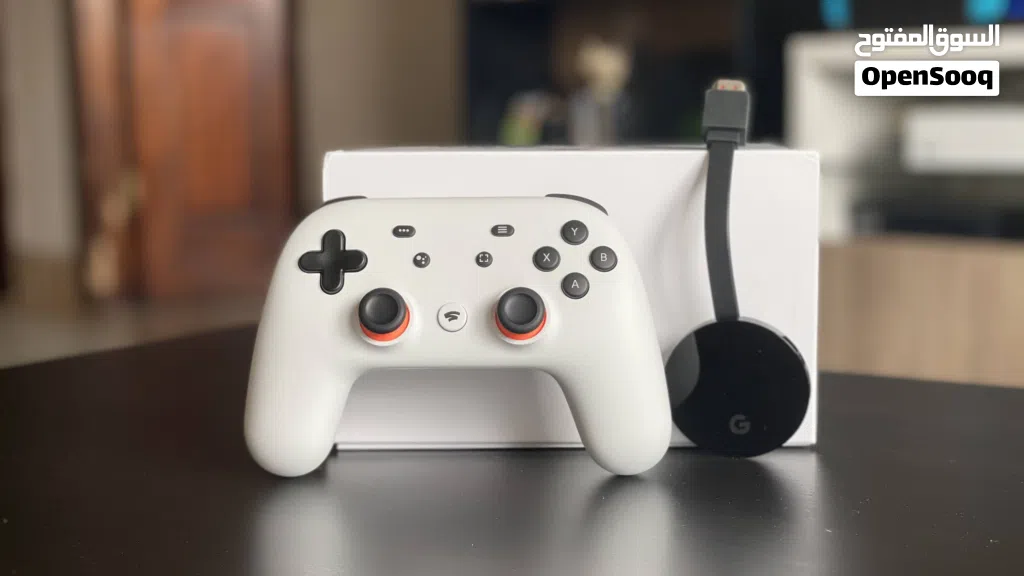
GOOGLE STADIA CONTROLLER + CHROMECAST ULTRA 4K جهاز التحكم من جوجل مع كروم كاست
- TypePC Controllers
- Do you provide delivery?Yes
- ConditionNew
- NeighborhoodRuwi
- CityMuscat
- Sub CategoryControllers
- CategoryGaming & Toys
- Listing Id283133798
- Published Date25-06-2026
Description
It’s been clear from day one that Google Stadia is all about cloud gaming without the need for a console or PC, but that doesn’t stop it being somewhat jarring when you flick open the box to find just a controller and a Chromecast Ultra.
But they’re genuinely all you need to start playing games. Once you’ve plugged the Chromecast into your TV’s HDMI port and set it up through the Google Home app, you’ll need to set up the imaginatively-named Stadia Controller. The wireless pad is itself a Wi-Fi-enabled-device, communicating directly with Google’s cloud network.
To activate it you’ll need to download the dedicated Stadia app, sign up for the service and follow the on-screen setup prompts. Once that’s done it’s just a case of entering the button code displayed on your TV to link it up and start playing. The process is impressively painless for the most part, but signing into Stadia on a friend’s home network and then returning to my own seemingly required me to restart the pairing process, which was annoying.
The Stadia Controller looks a bit like a mashup of the DualShock 4 and the Xbox One’s pad, but doesn’t feel quite as nice in the hand as either. That’s not to say it’s bad, though; it’s well-built with decent enough triggers and a clean overall look. The Midnight Blue pad we were given for review is probably the pick of the lot, colour-wise.
As well as the traditional face buttons, D-Pad and sticks, there’s a button for capturing screenshots and gameplay, which appear almost immediately on the Stadia app on your phone, and a Google Assistant button, whose functionality at the time of writing is limited to launching a game from the Stadia home screen via the built-in mic.
The round Stadia button that sits between the thumbsticks is the one you’re going to be using the most. A short press will bring up the home menu (more on that in a second) and a long press allows you to start and exit a game, and switch between accounts.
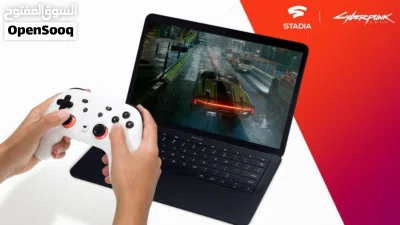
While Google intends to make the Stadia Controller wireless with any supported device, it’s currently still only possible on the TV with the Chromecast Ultra. If you want to switch to a Pixel phone (still the only supported mobile devices) you have to connect the two with a USB-C to USB-C cable. Open Stadia on the Chrome browser on your laptop and plug in the pad with a USB-A to USB-C cable to play on there. It all works pretty seamlessly as long as you have the relevant wires handy.
If you want to add a Stadia controller to a different account, it’s as simple as entering a code shown on screen when the device in question recognises a new pad. And if for some reason you really dislike Google’s controller, you’re able to use an Xbox controller instead.
But they’re genuinely all you need to start playing games. Once you’ve plugged the Chromecast into your TV’s HDMI port and set it up through the Google Home app, you’ll need to set up the imaginatively-named Stadia Controller. The wireless pad is itself a Wi-Fi-enabled-device, communicating directly with Google’s cloud network.
To activate it you’ll need to download the dedicated Stadia app, sign up for the service and follow the on-screen setup prompts. Once that’s done it’s just a case of entering the button code displayed on your TV to link it up and start playing. The process is impressively painless for the most part, but signing into Stadia on a friend’s home network and then returning to my own seemingly required me to restart the pairing process, which was annoying.
The Stadia Controller looks a bit like a mashup of the DualShock 4 and the Xbox One’s pad, but doesn’t feel quite as nice in the hand as either. That’s not to say it’s bad, though; it’s well-built with decent enough triggers and a clean overall look. The Midnight Blue pad we were given for review is probably the pick of the lot, colour-wise.
As well as the traditional face buttons, D-Pad and sticks, there’s a button for capturing screenshots and gameplay, which appear almost immediately on the Stadia app on your phone, and a Google Assistant button, whose functionality at the time of writing is limited to launching a game from the Stadia home screen via the built-in mic.
The round Stadia button that sits between the thumbsticks is the one you’re going to be using the most. A short press will bring up the home menu (more on that in a second) and a long press allows you to start and exit a game, and switch between accounts.
While Google intends to make the Stadia Controller wireless with any supported device, it’s currently still only possible on the TV with the Chromecast Ultra. If you want to switch to a Pixel phone (still the only supported mobile devices) you have to connect the two with a USB-C to USB-C cable. Open Stadia on the Chrome browser on your laptop and plug in the pad with a USB-A to USB-C cable to play on there. It all works pretty seamlessly as long as you have the relevant wires handy.
If you want to add a Stadia controller to a different account, it’s as simple as entering a code shown on screen when the device in question recognises a new pad. And if for some reason you really dislike Google’s controller, you’re able to use an Xbox controller instead.
AI Tags

Section: MarketplaceCategory: ElectronicsType: Gaming AccessoriesListing Type: For SaleSeller Type: Individual SellerFeatures: WirelessFeatures: 4KFeatures: streamingFeatures: GamingCondition: UsedColor: WhiteBrand: googleModel: stadia controllerUsed Status: Good ConditionRegion: Middle East and North Africa
Frequently Asked Questions
How many listings are there in Controllers?
What's the safest method to contact advertisers?
How can I arrange a safe meeting and verify the product quality?
Verified User

Welcome ElectronicsReply to chat within 9 hours
2.8
25-03-2020
General Tips
- Only meet in public places
- Never pay or transfer money in advance
- Inspect the product before you buy it
Sell Anything on OpenSooq
Do you have a similar Listing?
Add New Listing

Want more views?
Promote or Repost your listing
Explore More